



Best Malware Removal Programs in 2026 (Guide)
Malware attacks are accelerating. In the first half of 2025 alone, security researchers identified over 400 million new malware variants — many powered by AI that adapts in real time to dodge traditional defenses. That means the removal tool you relied on last year may not catch what’s circulating today.
But here’s the real problem: most people don’t choose a malware removal program until after an infection. And by then, panic drives poor decisions — downloading the first free scanner that pops up, running duplicative tools that conflict with each other, or paying for software that solves the wrong problem.
This guide cuts through the noise. You’ll get a side-by-side comparison of the top malware removal programs in 2026, a clear breakdown of when free tools are enough (and when they’re not), step-by-step removal instructions, and a decision framework that matches the right tool to your specific situation.
This guide is for home users dealing with an active infection, small business owners building a security stack, and IT professionals evaluating options for endpoints.
Table of Contents
Quick Summary
- What are malware removal programs? → Software that detects, quarantines, and eliminates viruses, ransomware, spyware, and trojans from your devices.
- Best overall? → Malwarebytes for on-demand removal; Bitdefender for full real-time protection.
- Free or paid? → Free scanners handle basic cleanup; paid tools add real-time defense, ransomware shields, and multi-device coverage.
- Quick removal steps? → Disconnect from the internet → boot into Safe Mode → run a full scan → quarantine threats → verify.
- After removal? → Change all passwords, update your OS, enable real-time protection, and run a second-opinion scan.
What Are Malware Removal Programs?
Malware removal programs are specialized software tools designed to detect, quarantine, and eliminate malicious code — including viruses, ransomware, spyware, adware, and trojans — from computers and mobile devices. They work through signature-based detection, heuristic analysis, and behavioral monitoring to identify both known and emerging threats.
That definition covers the basics. But understanding *how* these programs actually work is what separates smart choices from expensive mistakes.
How Malware Detection Engines Work

Modern malware removal programs rely on three core detection methods — often running them simultaneously:
- Signature-based detection compares files against a database of known malware fingerprints. Fast and reliable for recognized threats, but useless against brand-new (zero-day) malware.
- Heuristic analysis examines code structure and behavior patterns to flag files that look suspicious, even without a matching signature. This catches new malware variants that are slight modifications of known threats.
- AI-driven behavioral monitoring watches how processes interact with your system in real time. If a program starts encrypting files rapidly or injecting code into other processes, behavioral engines flag and block it — even if the file itself appears clean.
The best programs in 2026 combine all three. Relying on signatures alone leaves you exposed to new, fast‑evolving malware variants. For more background on evolving malware and ransomware tactics, see the official guidance from CISA’s cyber threats and advisories page.
Antivirus vs. Anti-Malware: What’s the Difference?
The terms are often used interchangeably, but there’s a practical distinction.
- Antivirus software was originally developed to combat traditional viruses — self-replicating programs that attach to files. Over time, antivirus suites expanded to cover other threats.
- Anti-malware tools are designed from the ground up to tackle the full modern threat spectrum: ransomware, spyware, adware, rootkits, trojans, and zero-day exploits.
In practice, most leading programs now cover both. The label matters less than the detection capabilities. When evaluating any tool, look at its independent lab scores and threat coverage — not just its name.
Best Malware Removal Programs in 2026 (Compared)
How we ranked these tools: We looked at recent independent lab results, hands‑on testing, major expert reviews, feature sets, pricing, and ease of use, rather than sponsorships or brand popularity.
Here’s how the top programs stack up across the dimensions that actually matter:
| Program | Price | Best For | Protection Level | Platform | Real-Time Protection | System Impact |
|---|---|---|---|---|---|---|
| Malwarebytes | Free / ~$45/yr | On-demand removal | High (independent lab rated) | Win, Mac, Android, iOS | Paid only | Low |
| Bitdefender Antivirus Plus | From ~$30/yr | Overall protection | Very high (top lab scores) | Win, Mac | Yes | Very low |
| Norton Power Eraser | Free | Standalone deep scan | High for stubborn threats | Win | No | Moderate (during scan) |
| Avast One Essential | Free | Free all-in-one | High for a free product | Win, Mac, Android, iOS | Yes | Low–moderate |
| Windows Defender | Free (built-in) | Built-in baseline | Solid baseline protection | Win | Yes | Low |
| Kaspersky Anti-Virus | From ~$30/yr | Advanced users | Very high (lab rated) | Win, Mac | Yes | Low |
| Emsisoft Emergency Kit | Free | Portable scanning | High as second-opinion tool | Win (portable) | No | Low |
Protection levels are based on recent independent lab tests (such as AV-TEST and AV-Comparatives) and major review benchmarks, and can vary by threat type and test period.
Malwarebytes — Best for On-Demand Removal
Malwarebytes has built a strong reputation as the tool many people reach for when something has already gotten past their defenses. Its free version scans and removes existing infections effectively. The scanning engine targets adware, spyware, trojans, and potentially unwanted programs (PUPs) that other tools often miss.
- -Strengths: Excellent at stubborn infection removal; lightweight; Browser Guard extension blocks malicious sites
- Limitations: Free version has no real-time protection — it’s a cleanup tool, not a shield
- Best for: First-response removal alongside a separate real-time antivirus
Bitdefender Antivirus Plus — Best Overall Protection
Bitdefender regularly scores near the top of independent lab tests, with very strong detection rates and minimal system slowdown. Its multi-layer ransomware defense and advanced threat intelligence make it a strong all-in-one choice.
- Strengths: Top-tier detection scores; autopilot mode for silent operation; ransomware rollback
- Limitations: Full features limited to paid tier; macOS version has fewer features than Windows
- Best for: Users wanting set-it-and-forget-it comprehensive protection
Norton Power Eraser — Best Free Standalone Scanner
Norton Power Eraser is a free, no-install tool designed for aggressive deep scans. It targets deeply embedded threats that standard antivirus programs sometimes miss, including rootkits and scareware.
- Strengths: Extremely aggressive at finding hidden threats; no installation required; completely free
- Limitations: Can produce false positives due to aggressive scanning; Windows only
- Best for: Second-opinion scan after running your primary tool
Avast One Essential — Best Free All-in-One
Among free options, Avast One Essential offers the most complete package. It bundles real-time protection, a basic firewall, ransomware shield, and scheduled scanning — features typically locked behind paywalls.
- Strengths: Real-time protection on the free tier; cross-platform; includes basic VPN and firewall
- Limitations: Ad prompts to upgrade; Avast previously faced scrutiny over data collection practices and has since restructured its data policies, but privacy‑conscious users may still prefer alternatives.
- Best for: Users who want maximum coverage without spending anything
Windows Defender — Best Built-In Option
Windows Defender (Microsoft Defender Antivirus) has improved a lot in recent years. It now scores competitively in many independent tests and includes real-time protection, cloud-delivered protection, and offline scanning — all at no extra cost.
- Strengths: Pre-installed on all Windows 10/11 machines; no bloatware; integrates with Windows Security Center
- Limitations: Lacks advanced features like VPN, password manager, or identity protection; weaker against phishing compared to dedicated suites
- Best for: Users with basic browsing habits who don’t want to install additional software
Kaspersky Anti-Virus — Best for Advanced Users
Kaspersky delivers strong detection rates and a deep feature set, including vulnerability scanning, safe banking, and granular scan scheduling. Its customization options appeal to technically proficient users.
- Strengths: High detection accuracy; low system impact; excellent ransomware and phishing protection
- Limitations: Geopolitical concerns have led some government agencies to restrict its use; interface can feel complex for beginners
- Best for: Power users and IT-savvy individuals wanting fine-grained control
Emsisoft Emergency Kit — Best Portable Scanner
Emsisoft Emergency Kit runs directly from a USB drive — no installation needed. That makes it invaluable when malware has compromised your system to the point where installing new software isn’t possible.
- Strengths: Portable (runs from USB); dual-engine scanning; no installation conflicts
- Limitations: No real-time protection; Windows only; less name recognition than major brands
- Best for: Emergency response when normal tools can’t install
Free vs. Paid Malware Removal Software
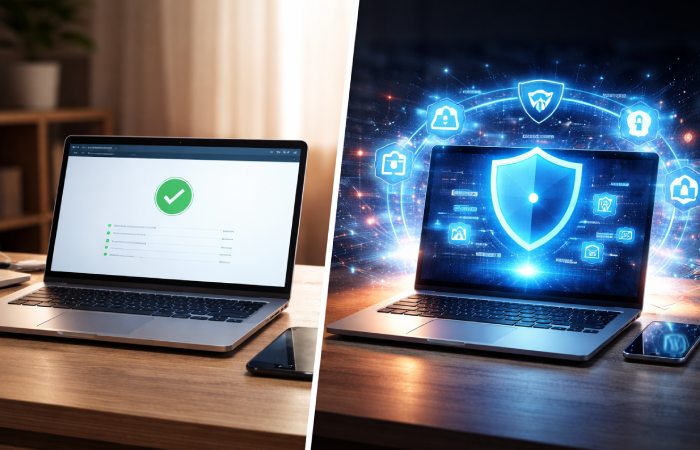
The free-vs-paid question isn’t about which is “better” — it’s about which is better *for your situation.
What Free Programs Can (and Can’t) Do
Free malware removal tools are powerful enough to scan your system and remove existing infections. Programs like Malwarebytes Free, Norton Power Eraser, and Emsisoft Emergency Kit excel at this job.
What they generally can’t do:
- Provide real-time, always-on protection (a few products like Avast One Essential are notable exceptions)
- Defend against ransomware with dedicated shields
- Cover multiple devices under one license
- Offer priority customer support
- Include extras like VPN, password managers, or dark web monitoring
When Paid Protection Is Worth the Investment
Consider paying for malware removal software if:
- You handle sensitive financial or business data
- You run a small business with multiple endpoints
- You want ransomware rollback and real-time behavioral monitoring
- You need cross-platform coverage (Windows + Mac + mobile)
- You lack technical confidence to handle infections manually
For casual browsing on a single Windows machine, Windows Defender plus an occasional Malwarebytes Free scan is a solid — and completely free — defense.
Why Running Multiple Scanners Can Backfire
This is a common mistake. Installing two or more real-time antivirus programs creates conflicts:
- Both try to quarantine the same file simultaneously
- System resources tank as competing engines run background scans
- False positives multiply as one scanner flags the other’s processes
On Windows, installing a third‑party antivirus usually turns Defender’s active scanning off automatically, but two third‑party real‑time engines can still conflict and slow your system down.
The safe approach: Use one real-time protection program (e.g., Bitdefender or Windows Defender) and one on-demand scanner (e.g., Malwarebytes Free) for periodic deep cleaning. Never run two real-time engines at once.
How to Remove Malware Step by Step
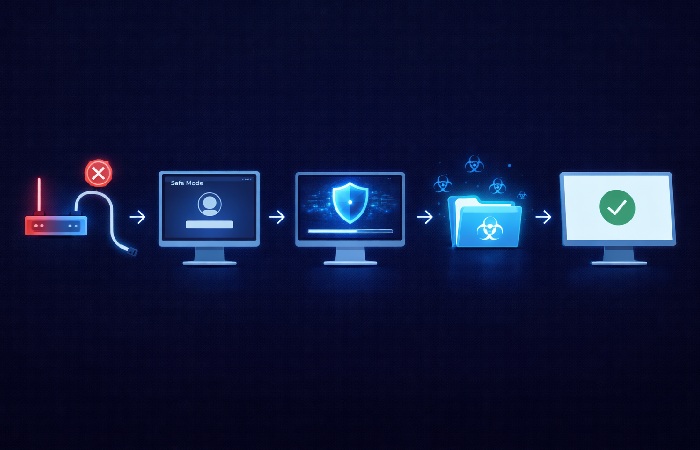
If you suspect an active infection, follow these steps in order. Skipping ahead often means the malware reactivates during removal.
Step 1 — Disconnect and Boot Into Safe Mode
Disconnect from the internet immediately. This prevents malware from communicating with external servers, spreading to other network devices, or downloading additional payloads.
Then restart your computer in Safe Mode:
- Windows 10/11: Settings → Update & Security → Recovery → Advanced Startup → Restart Now → Troubleshoot → Startup Settings → Enable Safe Mode with Networking
- Mac: Restart and hold the Shift key until the login screen appears
Safe Mode loads only essential system services, which stops most malware processes from running — making them easier to detect and remove.
Step 2 — Run a Full System Scan
Open your malware removal program and run a full system scan — not a quick scan. Full scans examine every file, folder, and running process on your machine.
If your installed tool didn’t catch the infection initially, run a second-opinion scan with a different engine (e.g., Norton Power Eraser or Emsisoft Emergency Kit).
Step 3 — Quarantine, Delete, and Verify
After the scan completes:
- Quarantine flagged files first (quarantine isolates files without deleting them, allowing recovery if something is a false positive)
- Review quarantined items — delete confirmed threats
- Restart your computer normally (exit Safe Mode)
- Run a second full scan to verify nothing was missed
Step 4 — Post-Removal Security Checklist
Removing the malware is only half the job. These steps prevent reinfection:
- Change passwords for email, banking, and social media — especially if a keylogger was involved
- Update your operating system and all installed software to patch exploited vulnerabilities
- Enable real-time protection if it was disabled
- Clear your browser extensions and remove anything you don’t recognize
- Set up automatic scan scheduling (weekly full scans are a good baseline)
- Back up your clean system so you have a restore point
According to [the FTC’s guide to malware protection](https://consumer.ftc.gov/articles/how-recognize-remove-avoid-malware), keeping software updated and using reputable security tools are two of the most effective prevention measures available to consumers.
How to Choose the Right Malware Removal Program
Instead of asking “which is best?”, ask “which is best for my situation?” This framework helps:
| Your Situation | Recommended Approach | Why |
|---|---|---|
| Home user, casual browsing | Windows Defender + Malwarebytes Free (on-demand) | Free, low-maintenance, covers both real-time and deep-scan needs |
| Home user, handles financial data | Bitdefender Antivirus Plus | Strong ransomware protection and banking security at affordable price |
| Active infection right now | Malwarebytes Free + Norton Power Eraser | Best combo for immediate removal and second-opinion deep scan |
| Small business (5–20 devices) | Norton 360 or ESET Home Security | Multi-device licensing, centralized management, advanced controls |
| IT professional / power user | Kaspersky + Emsisoft Emergency Kit (USB) | Granular control + portable emergency response tool |
| Mac user | Bitdefender or Avast One Essential | Strong macOS detection; many competitors are Windows-focused |
For Home Users
Start with what’s free. Windows Defender provides a baseline. Add Malwarebytes Free for monthly deep scans. If you handle banking online or store sensitive data, upgrade to Bitdefender or Norton for real-time ransomware defense.
For Small Businesses
You need multi-device coverage and centralized management. Consumer-grade free tools don’t scale. Look for business tiers from Norton, Bitdefender, or ESET that include endpoint management dashboards and priority support.
For IT Professionals
Keep Emsisoft Emergency Kit on a USB drive for field work. Use Kaspersky or ESET for daily protection where granular policy control matters. Always have a second-opinion scanner ready.
Common Mistakes When Removing Malware
Avoiding these errors saves time and prevents accidental reinfection:
- Running multiple real-time scanners simultaneously— causes conflicts, slowdowns, and false positives
- Skipping Safe Mode before scanning— allows malware to actively block or evade the scanner
- Stopping after one scan— some infections require two or three passes with different engines
- Ignoring post-removal steps — failing to change passwords or update software leaves you vulnerable to the same exploit
- Trusting fake “malware detected” pop-ups — these are often scareware designed to trick you into downloading actual malware
- Assuming one tool covers everything** — no single program catches 100% of threats; layered defense is the professional standard
Who Should Use Malware Removal Programs — and Who Shouldn’t
Best for:
- Home users with active infections or wanting proactive protection
- Small businesses without dedicated IT security teams
- Anyone supplementing Windows Defender with a stronger on-demand scanner
- Users across multiple platforms (Windows, Mac, Android, iOS)
Not for:
- Enterprise environments needing centralized endpoint detection and response (EDR) — these require enterprise-grade platforms like CrowdStrike or SentinelOne
- Users who only need network-level protection (firewall/router security)
- Organizations subject to compliance frameworks that require auditable enterprise solutions
Final Verdict
The best malware removal program is the one that matches your threat level, budget, and technical comfort.
For most home users, Windows Defender plus Malwarebytes Free provides strong, no-cost protection. If you want comprehensive real-time defense without managing multiple tools, Bitdefender Antivirus Plus offers the best balance of detection accuracy, low system impact, and value.
If you’re dealing with an active infection right now, start with Malwarebytes Free in Safe Mode, then verify with Norton Power Eraser. Follow the post-removal checklist above before reconnecting to the internet.
No single malware removal program is perfect. The smartest approach is layered: one real-time shield, one on-demand scanner, and disciplined habits around updates, passwords, and downloads.
Frequently Asked Questions
Q1: What is the best malware removal program?
Malwarebytes is widely regarded as one of the best on-demand malware removal tools, while Bitdefender Antivirus Plus is a leading option for overall real-time protection. The right choice depends on whether you need to clean an existing infection or prevent future ones.
Q2: Are free malware removal tools safe to use?
Yes, reputable free tools like Malwarebytes Free, Norton Power Eraser, and Avast One Essential are safe. Download them only from official websites to avoid counterfeit versions bundled with malware.
Q3: Can malware be completely removed?
In most cases, yes. A full scan in Safe Mode followed by a second-opinion scan removes the vast majority of infections. Persistent rootkits may require specialized tools or a clean OS reinstall as a last resort.
Q4: Do I need both antivirus and anti-malware software?
Not necessarily. Most modern antivirus suites cover the full malware spectrum. However, pairing a real-time antivirus (like Bitdefender) with an on-demand scanner (like Malwarebytes Free) provides stronger layered defense than either alone.
Q5: How do I know if my computer has malware?
Common signs include sudden slowdowns, unexpected pop-ups, unfamiliar programs running at startup, browser redirects, disabled security software, and unusual network activity. Run a full scan immediately if you notice any of these.
Q6: How often should I run a malware scan?
Run a full system scan at least once per week. If you download files frequently or visit unfamiliar websites, scan after each session. Real-time protection handles continuous monitoring between scheduled scans.
About Technologyies
Technologyies publishes practical, easy-to-understand content on health, technology, business, marketing, and lifestyle. Articles are based mainly on reputable, publicly available information, with AI tools used only to help research, organise, and explain topics more clearly so the focus stays on real‑world usefulness rather than jargon or unnecessary complexity.
Disclaimer
This guide is for general information and not professional security advice. Products, features, and prices change, so always confirm details on the official site before you install or buy anything. No tool can guarantee 100% protection, especially against new or targeted attacks.